








Alerts
Contents
Alerts enable you to monitor your insights and get notified when something important changes. You can set fixed thresholds (e.g., notify me when unique visitors exceed 5,000) or use anomaly detection to automatically flag unusual patterns in your data.
Currently, alerts are supported on all trends.
How to create an alert
- Alerts are based off of insights. You can pick any existing trend insight or create a new one.
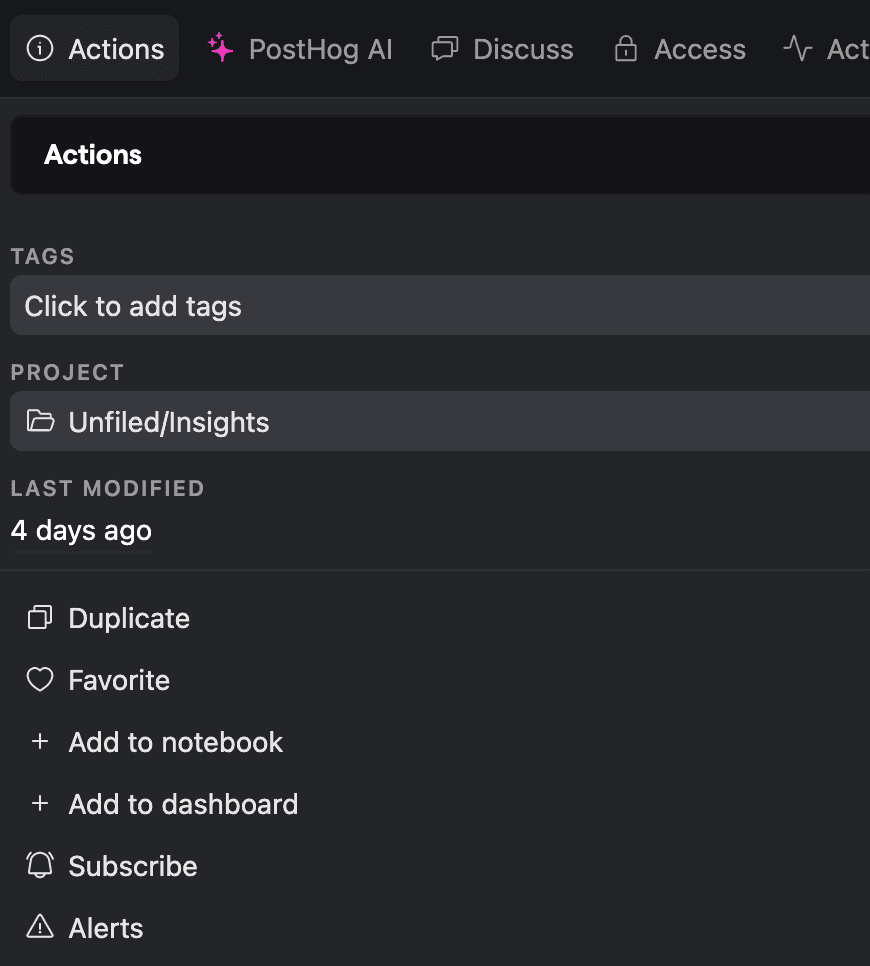
- Click Actions in the sidebar and select Alerts. This shows you all the alerts for this insight.

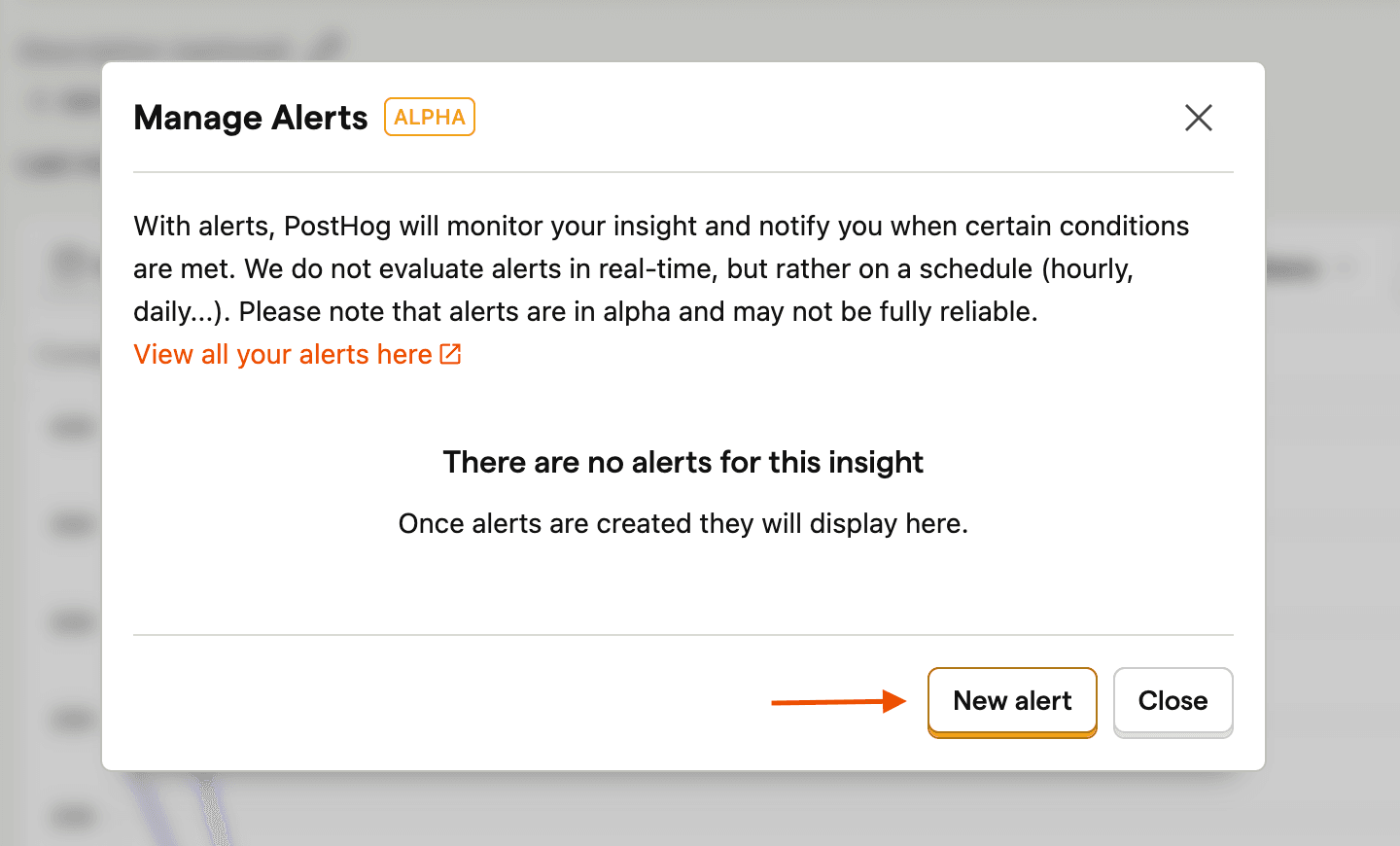
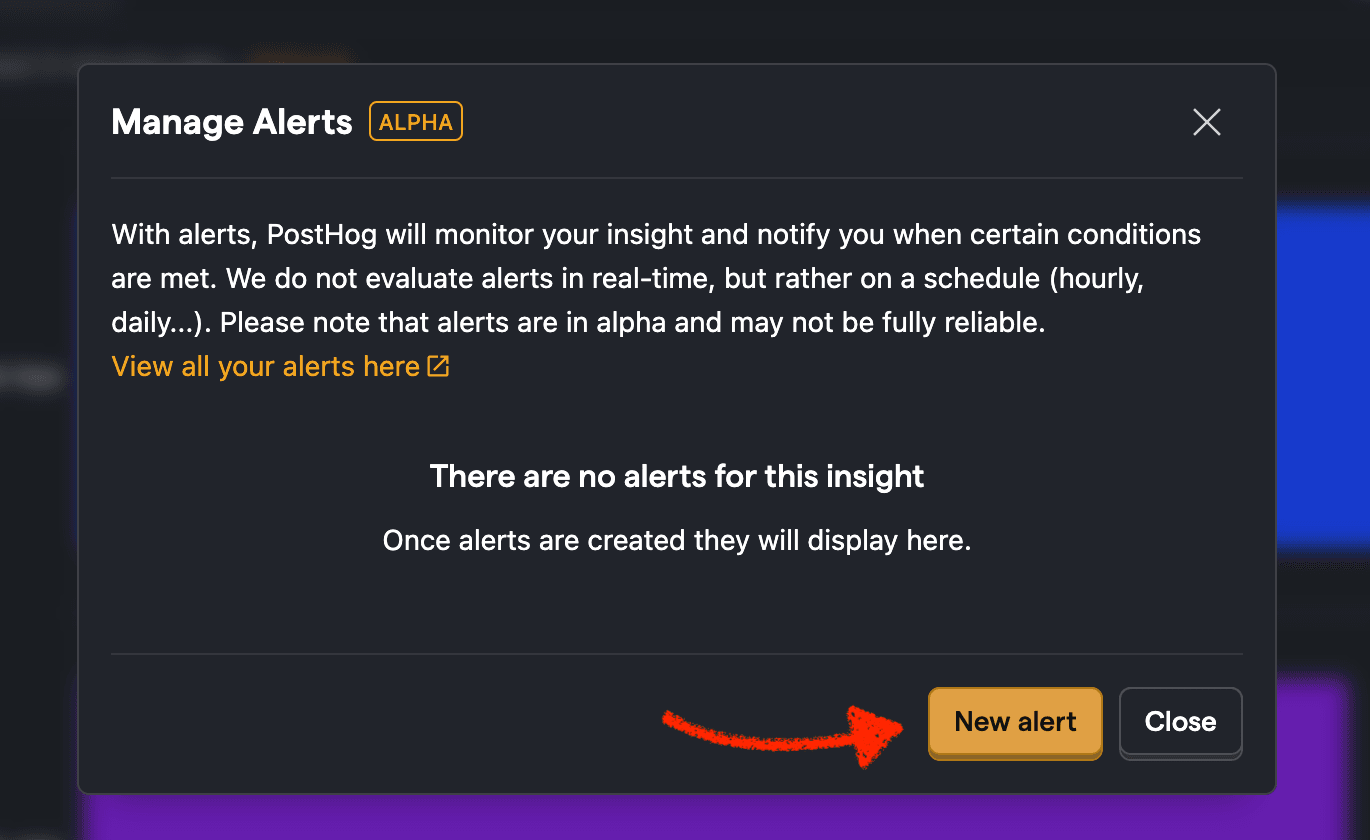
Click the New alert button.
Set a name for the alert.
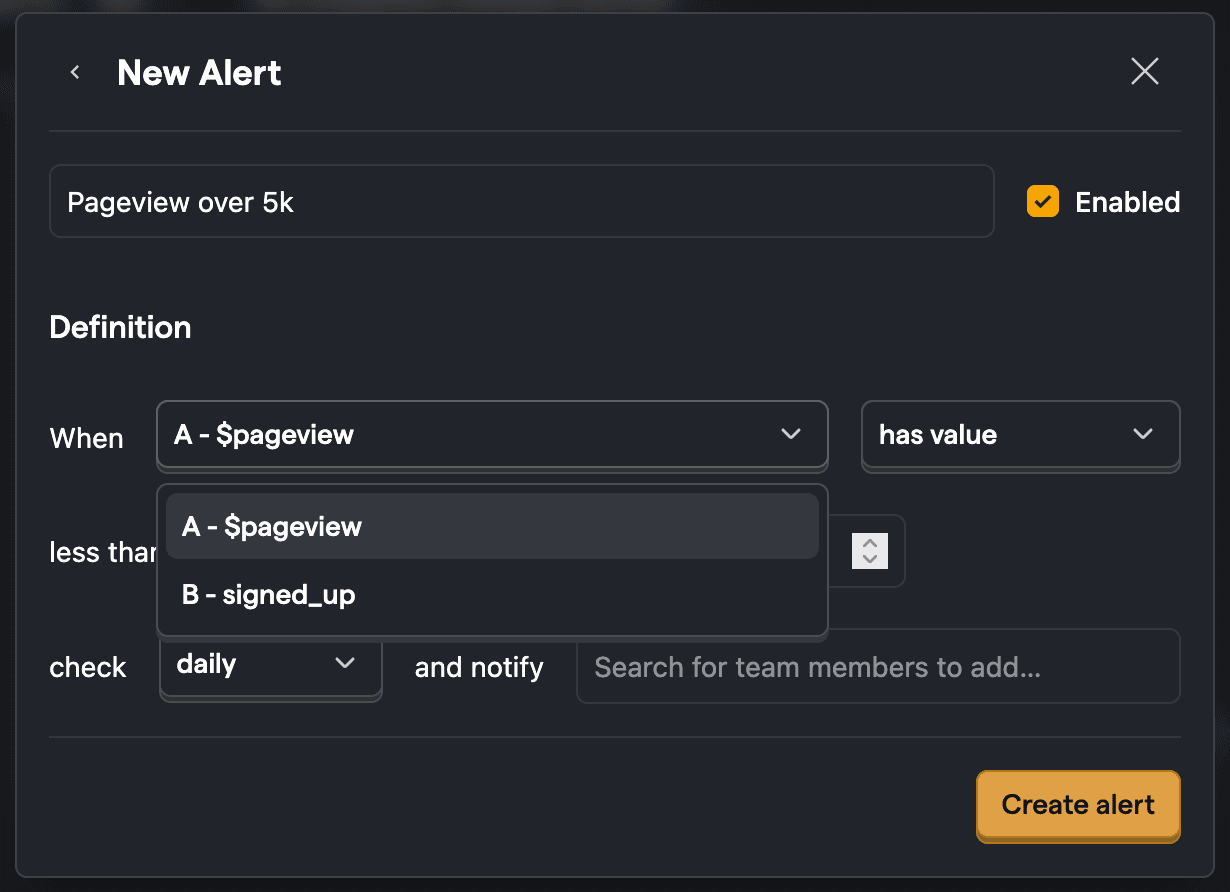
Select a 'series' you want to alert on. These are the different events/values you're plotting in the insight. For example, an insight might have multiple series like
A - $pageview(total count of page views for a URL) andB - signed_up(count of users who signed up on the page). You can select eitherAorB, which will determine if the alert gets checked against the value forA(total page views) orB(signups).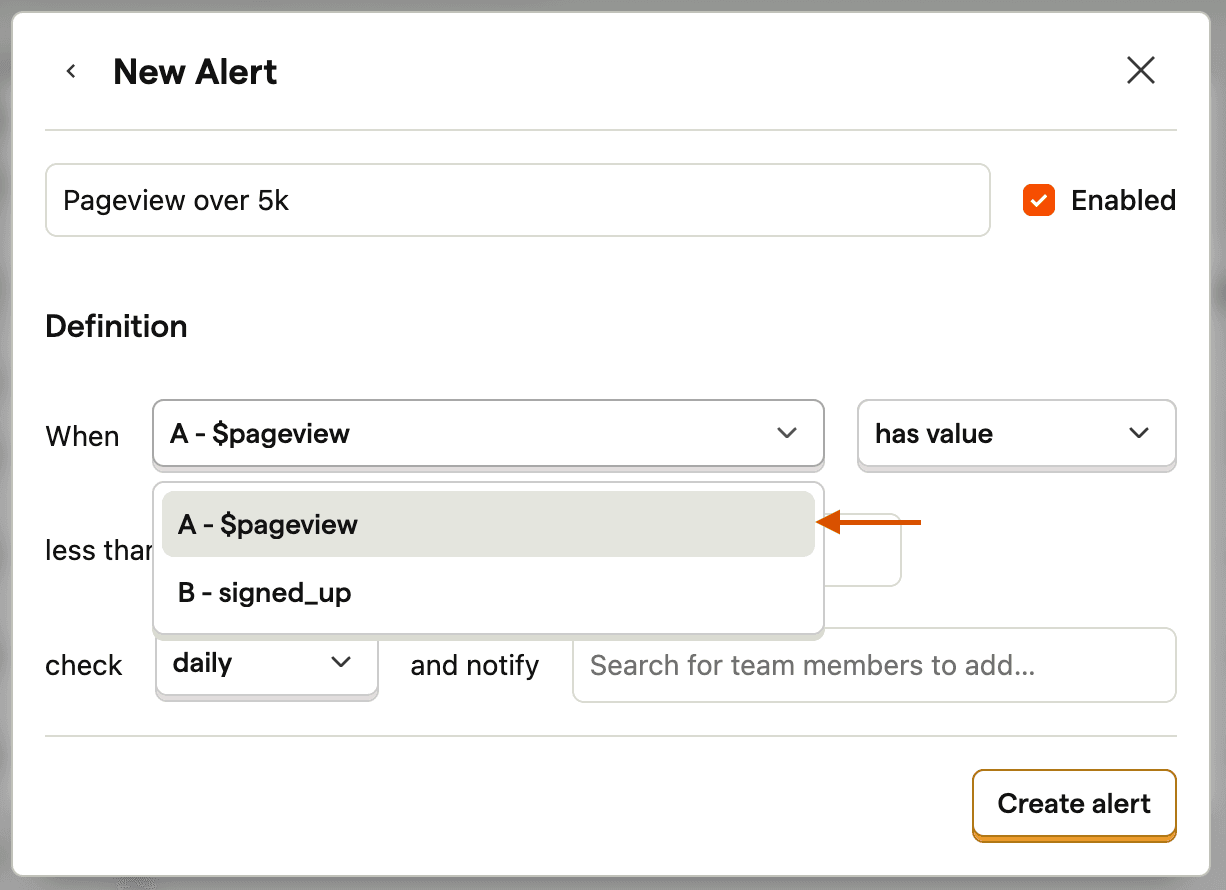
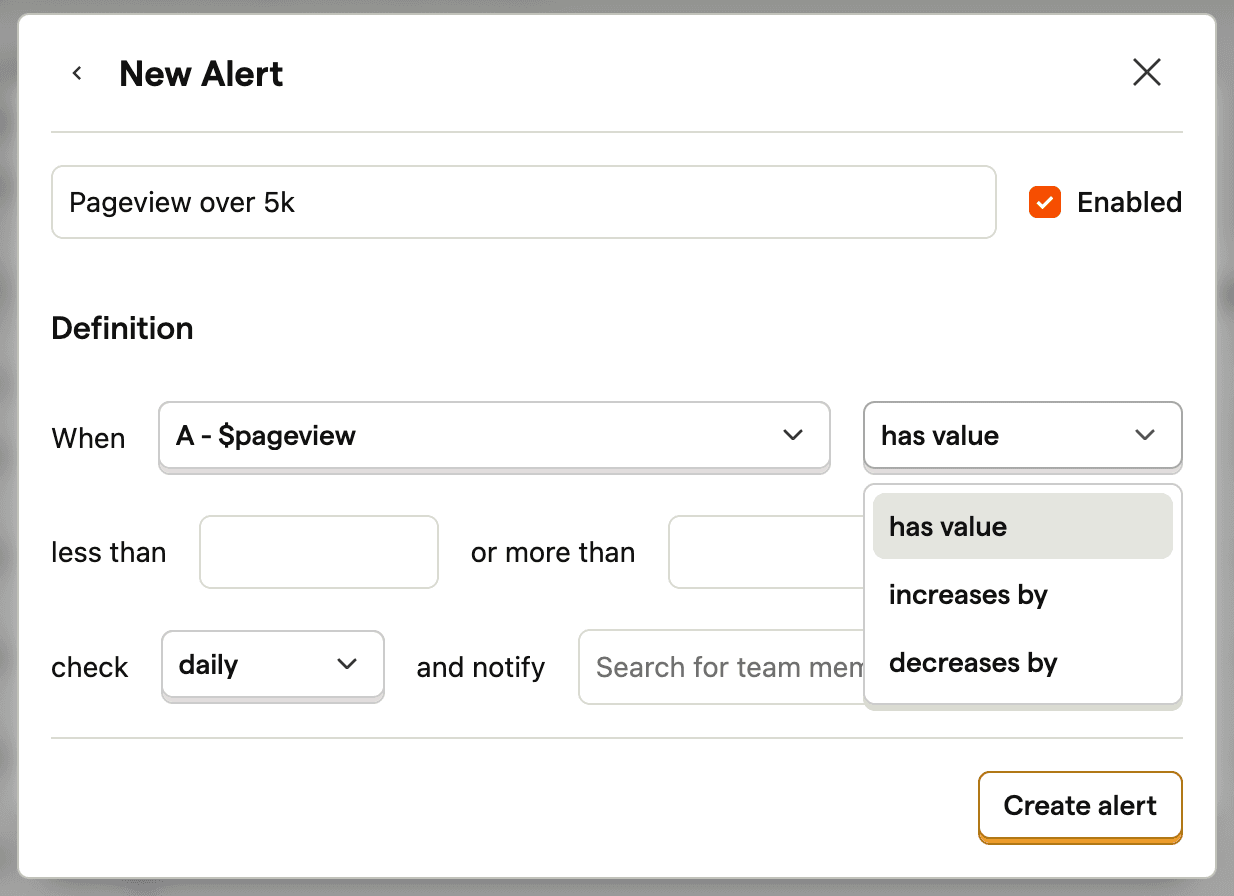
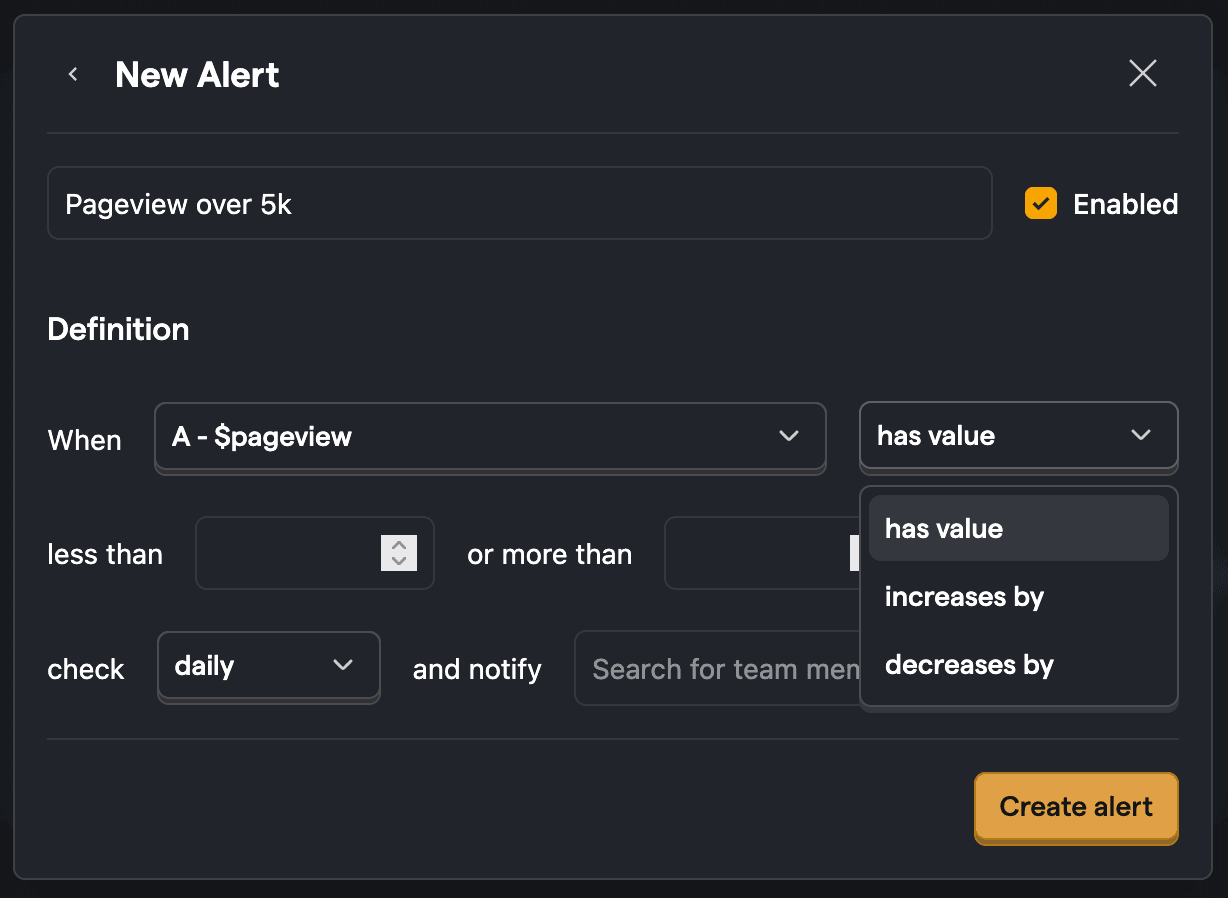
Select the alert type:
- has value - checks the series against a specific value.
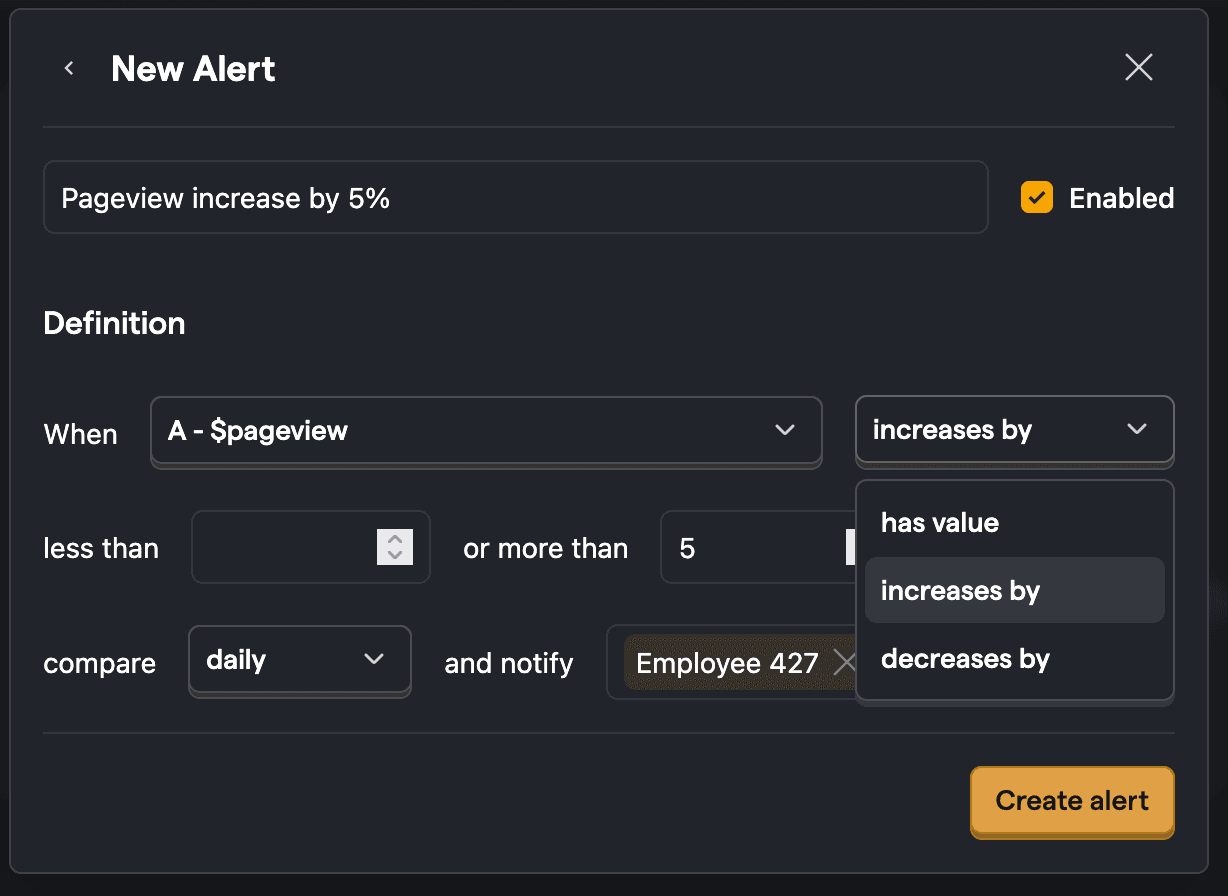
- increases by/decreases by - checks if the series has changed by a certain amount.
Set the threshold. This is the value you want to compare the series value against. For example, you can set a value of 5000 in the "more than" field to check when pageviews have exceeded 5k.
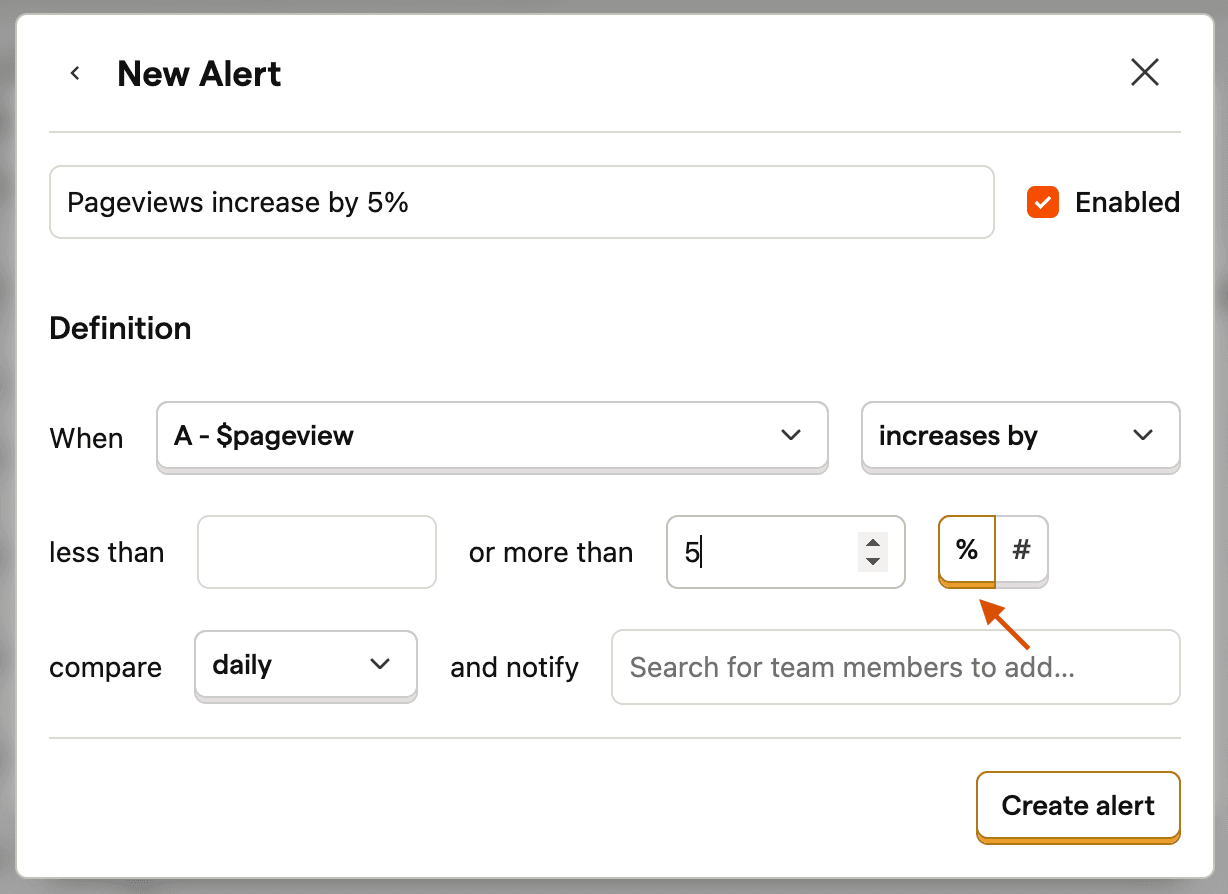
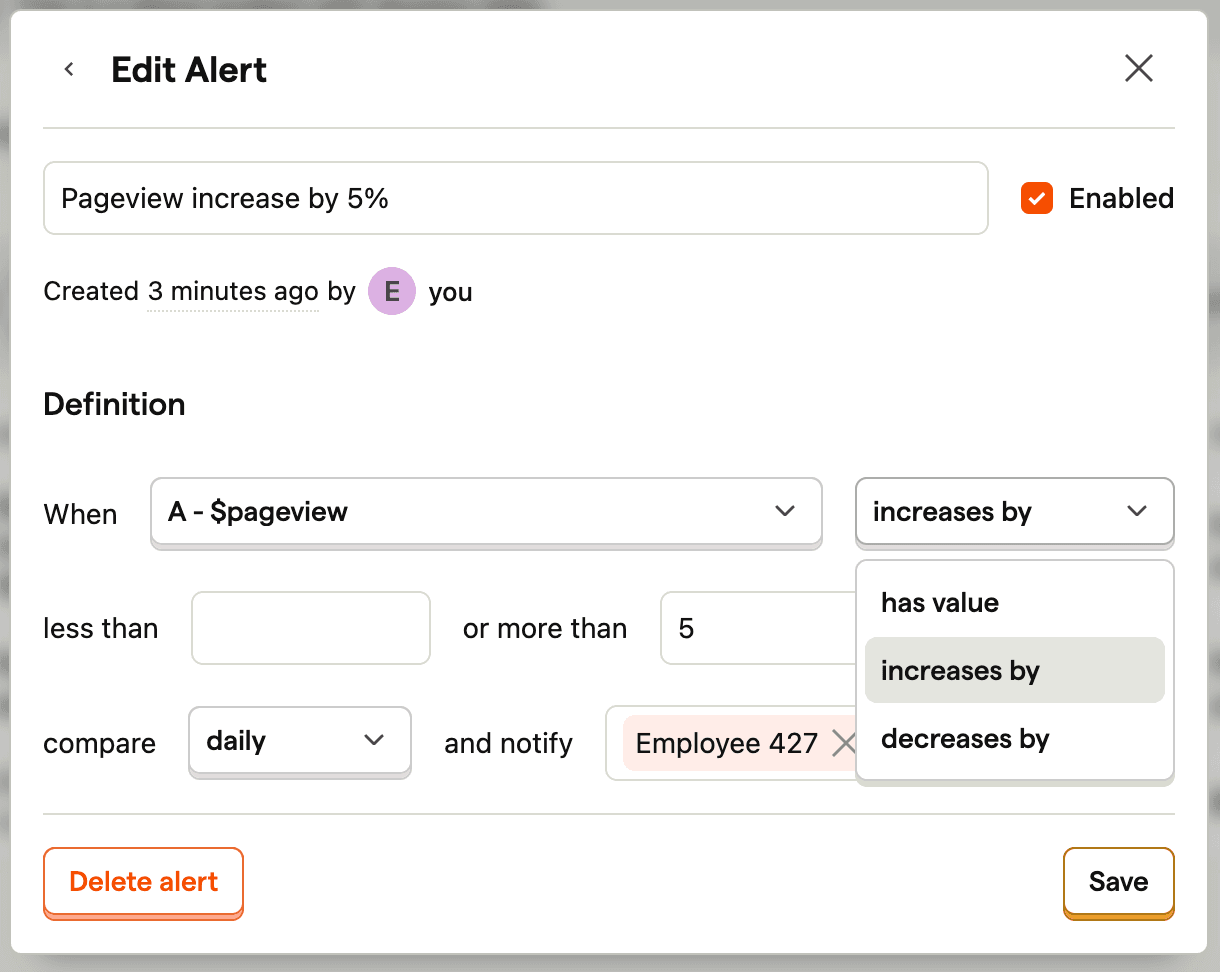
(Optional) For relative alerts (increases by/decreases by), you can set a percentage threshold. It compares the percentage change in the series value to the thresholds you've set.
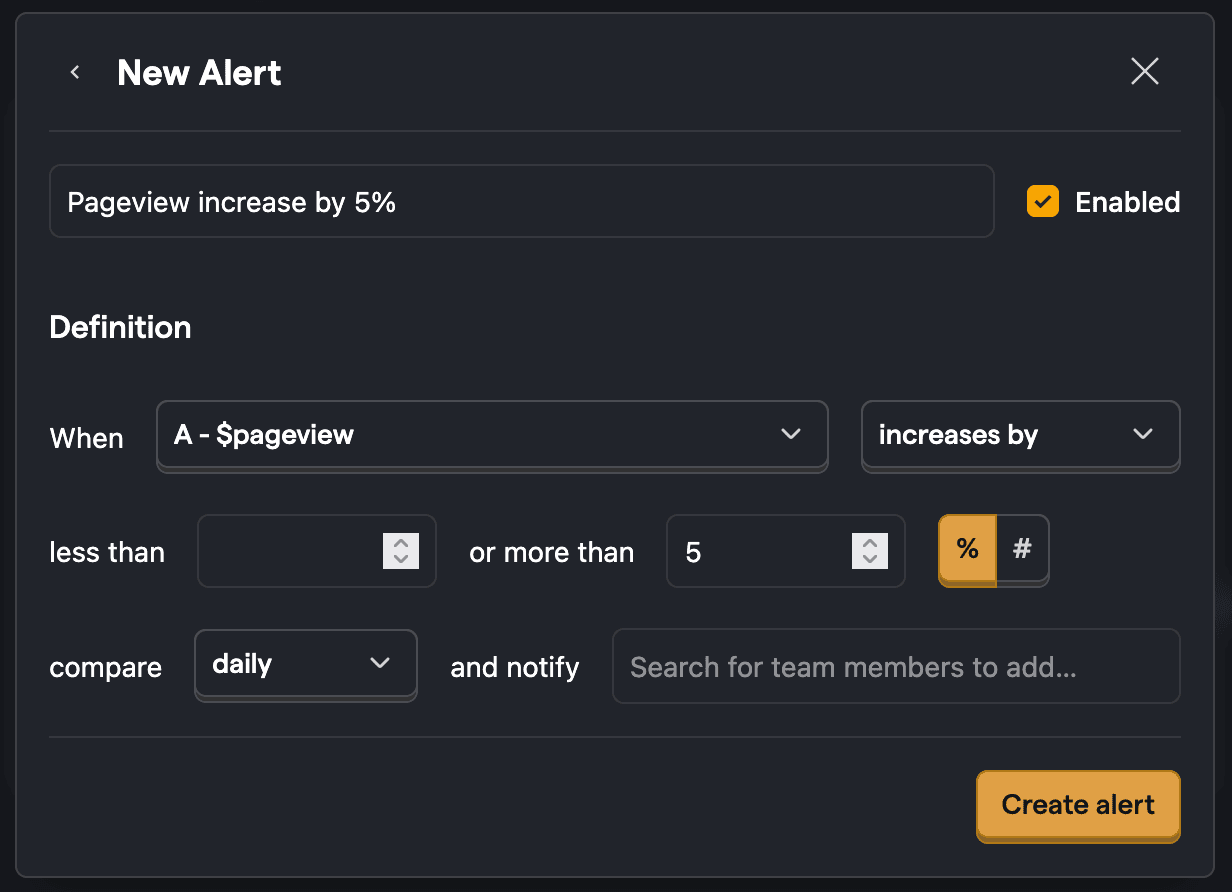
Select how often you want the alert to be checked (e.g. every hour, every day, every week, every month)
Pick who should be notified when the alert is triggered. You can add email recipients, Slack channels, or webhook URLs directly in the alert form.
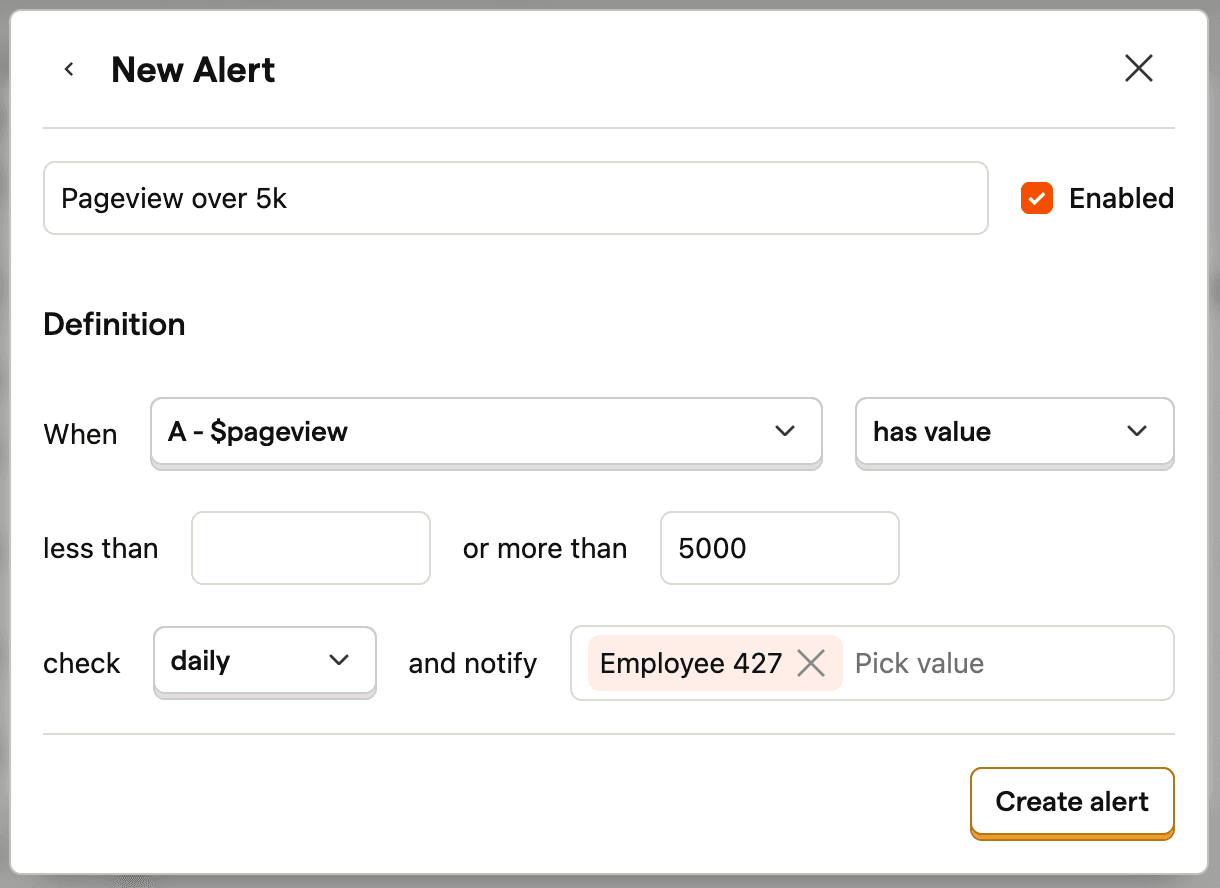
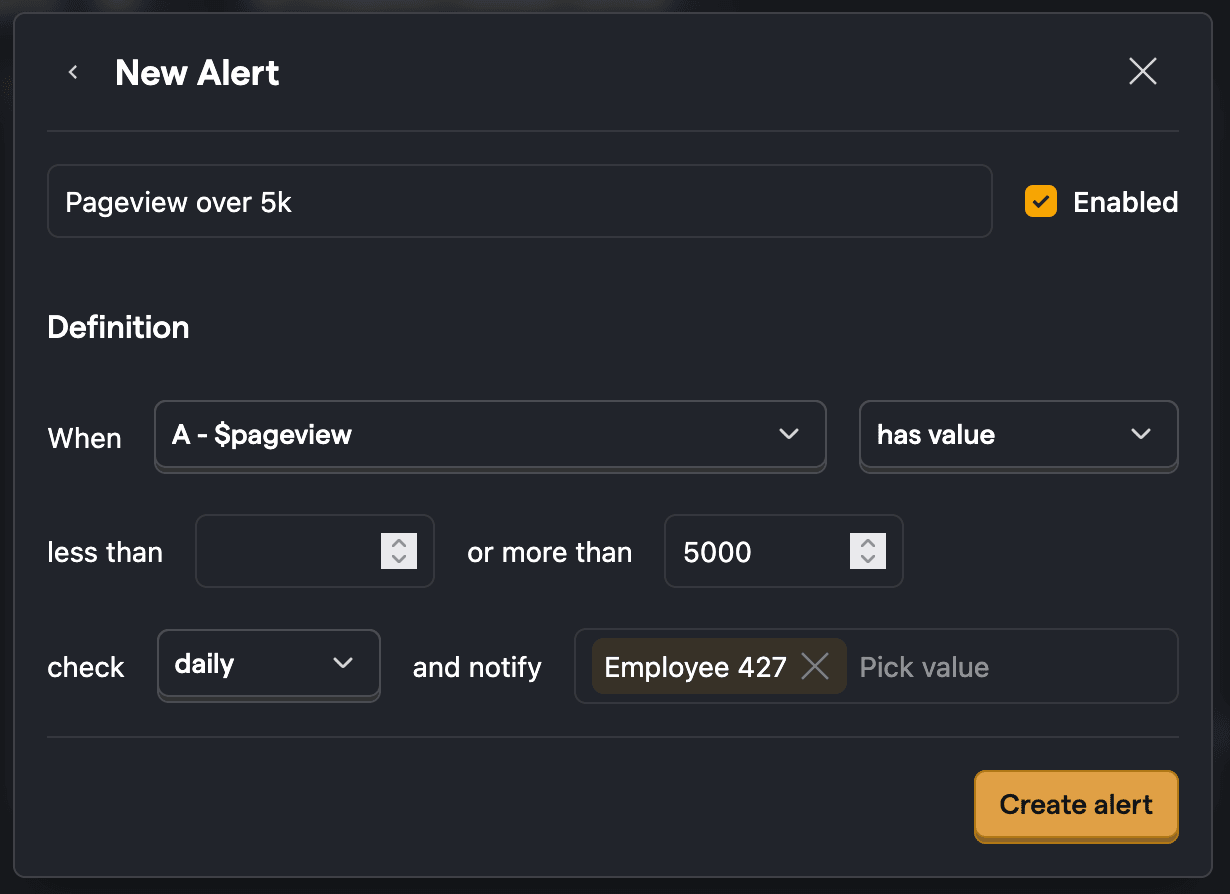
Click Create alert, and you're done!
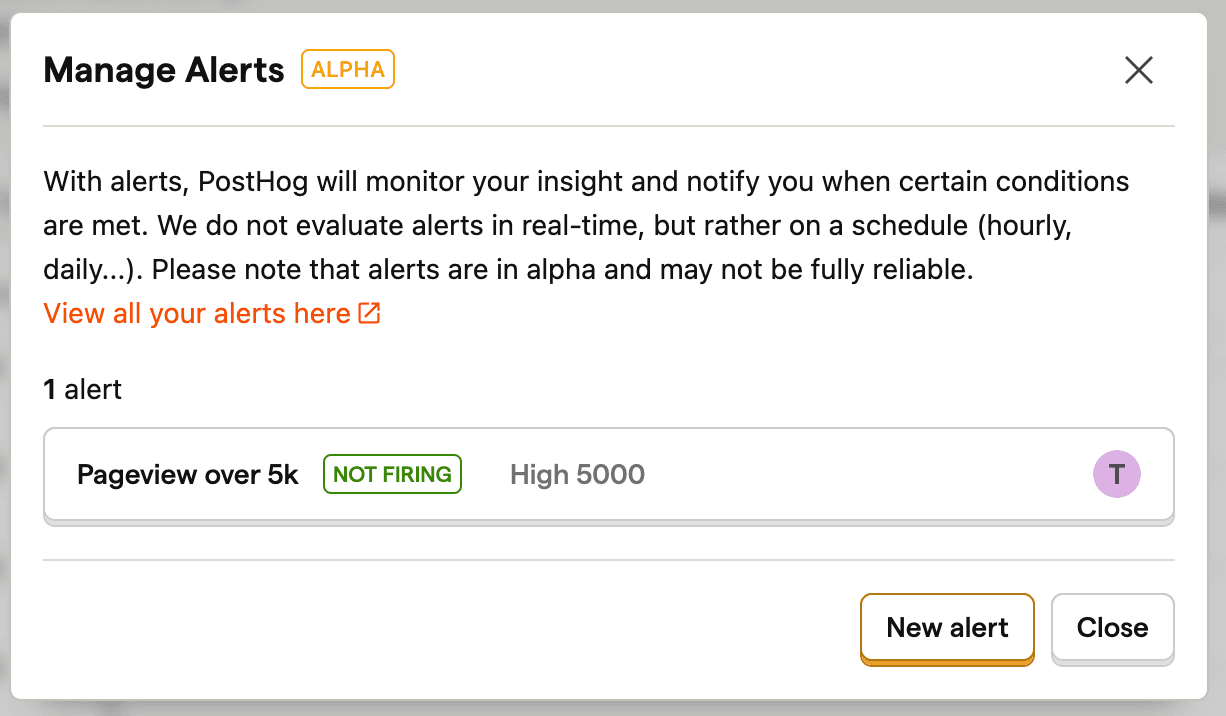
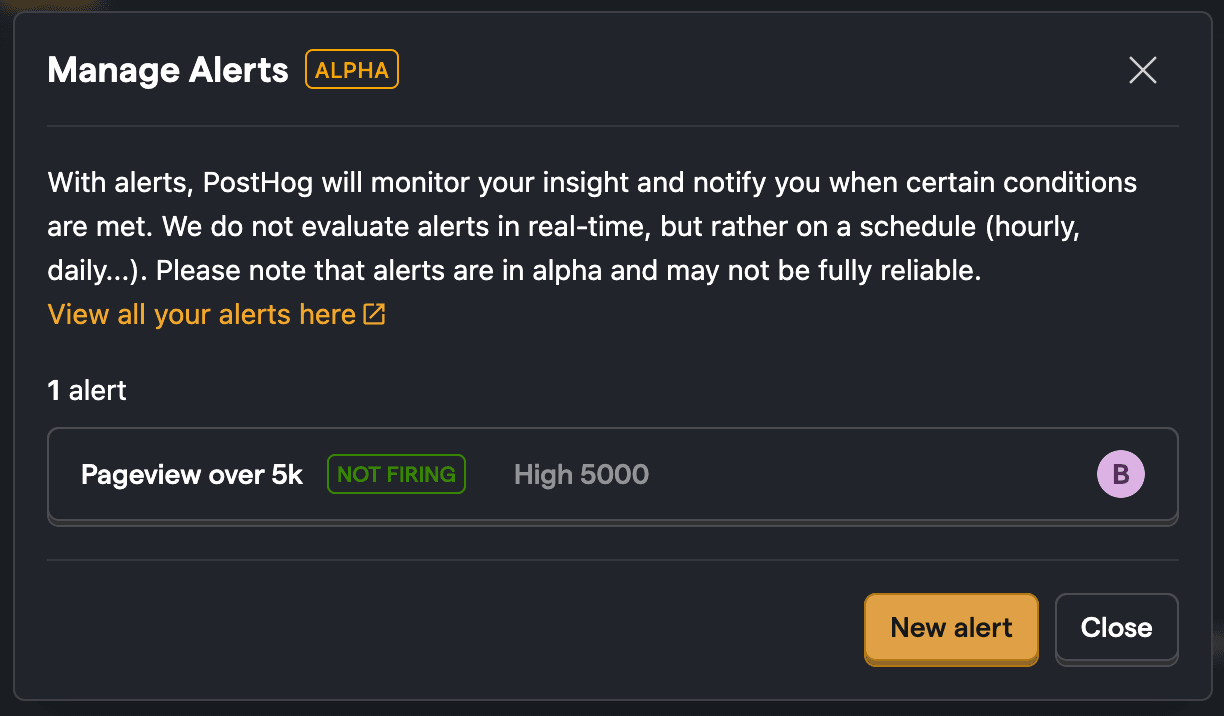
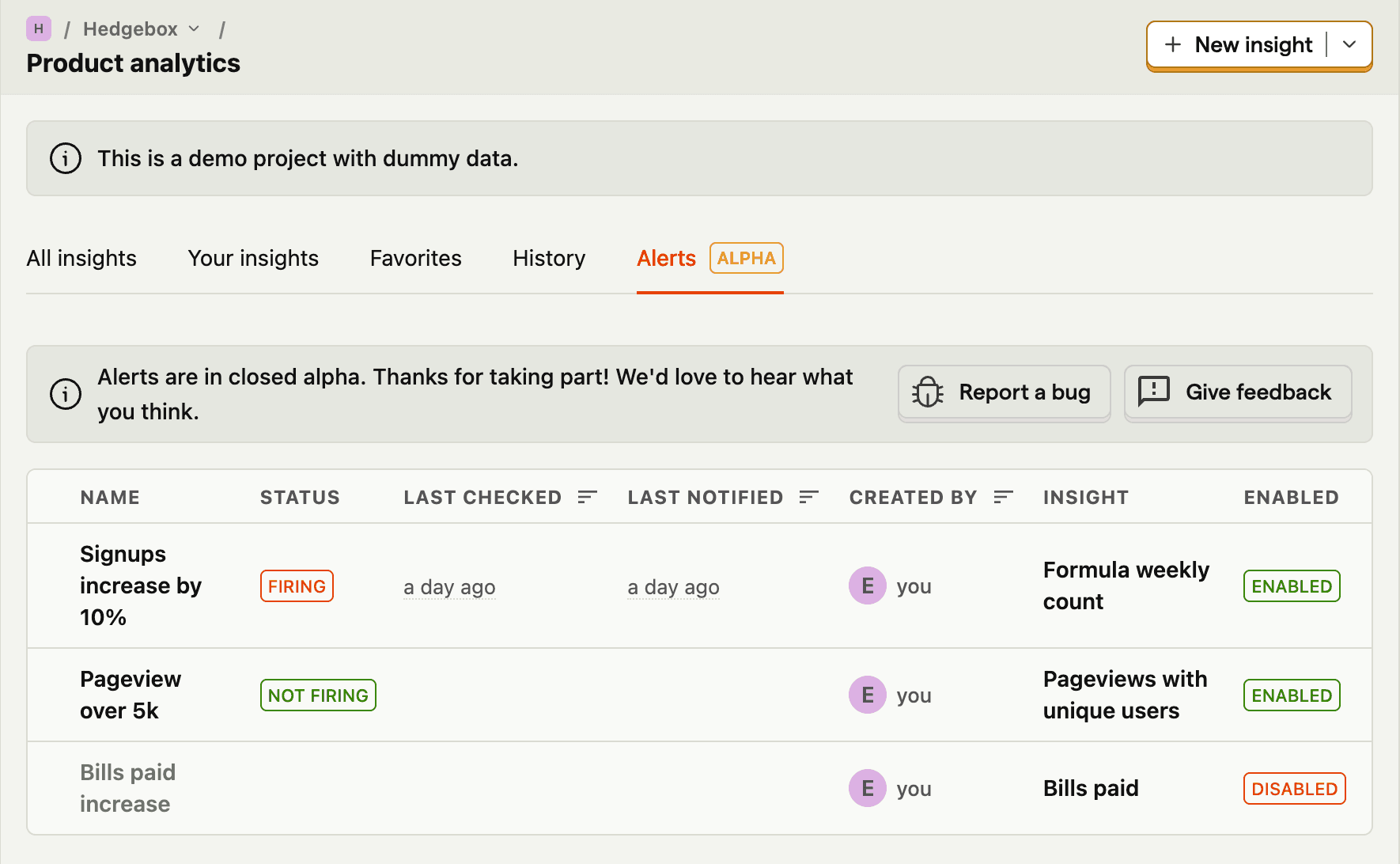
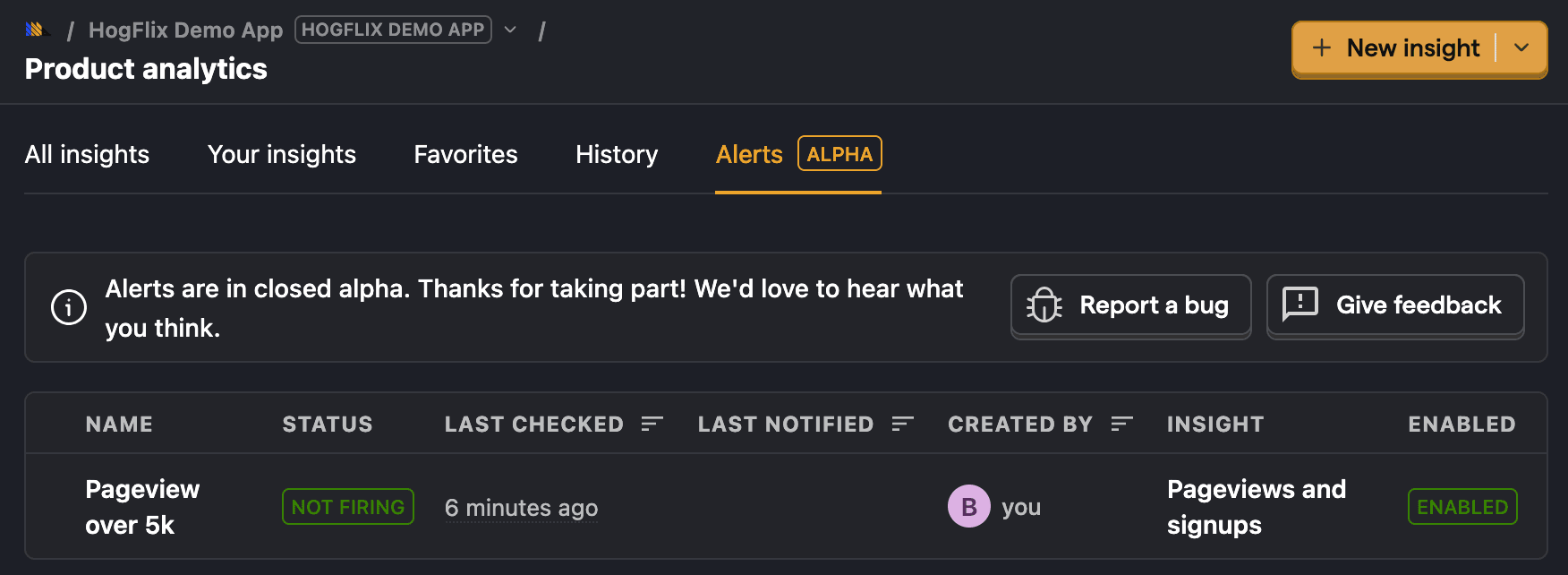
You can now view all the alerts set on the insight. To view all the alerts set, click Product analytics in the sidebar and then click the Alerts tab.
Create alerts with PostHog AI
You can also create and manage alerts using PostHog AI with natural language commands. Open PostHog AI from anywhere in the app and describe the alert you want.
Example commands:
- "Alert me when daily signups drop below 100"
- "Create an alert when pageviews increase by more than 50%"
- "Notify me if revenue drops more than 20% week over week"
- "Change my alert threshold to 200"
- "Disable the signups alert"
PostHog AI can create alerts on existing insights or generate new trend insights and set up alerts on them automatically. To update existing alerts, PostHog AI finds the alert by name and applies your changes.
PostHog AI can only create alerts on trends. Other insight types like funnels and retention don't support alerts.
Manage alerts via MCP
The PostHog MCP server provides tools to list, create, update, and delete alerts directly from your AI coding agent. This is useful for integrating alert management into your development workflow.
Example prompts:
- "Create an alert when daily signups exceed 1000"
- "List all my alerts and their current state"
- "Update my pageview alert threshold to 5000"
- "Delete the old conversion alert"
Relative alerts
Relative alerts check for change in the value of an insight. For example, if a value increases by 5% in a week. To create a relative alert, you just need to change the has value option to increases by or decreases by. This will then also enable you to set a percentage threshold.
Thresholds
We support both absolute value thresholds (insight value more than or less than a certain number) or percentage thresholds (insight value changed by a certain percentage). Percentage thresholds are only available for relative alerts (as you need to compare two values to figure out percentage change).
Anomaly detection
Anomaly detection alerts are in beta. To enable them, go to Settings > Feature previews and toggle on Anomaly Detection Alerts.
Instead of setting a fixed threshold, anomaly detection uses statistical algorithms to automatically learn what "normal" looks like for your data and alert you when something unusual happens. This is useful when:
- You don't know what threshold to set (e.g., your traffic varies by time of day)
- You want to detect subtle changes that a fixed threshold would miss
- Your metrics have seasonal patterns that make static thresholds unreliable
Creating an anomaly detection alert
- Open an existing trend insight or create a new one.
- Click Actions in the sidebar and select Alerts, then click New alert.
- Under alert type, select Anomaly detection instead of a threshold condition.
- Choose a detector (see available detectors below).
- Configure the sensitivity and window size for your detector.
- Use the Simulate section to preview how the detector performs on historical data before saving.
- Set your notification preferences and click Create alert.
Available detectors
PostHog includes 13 anomaly detection algorithms. For most use cases, Z-score or MAD are good starting points.
Statistical detectors
| Detector | Best for | How it works |
|---|---|---|
| Z-score | General purpose | Flags points that are many standard deviations from the rolling mean. Uses first-order differencing by default to handle cyclical data. |
| MAD (Median Absolute Deviation) | Data with outliers | Similar to Z-score but uses median instead of mean, making it more robust to existing outliers. Uses first-order differencing by default. |
| IQR (Interquartile Range) | Skewed distributions | Flags values outside the interquartile range. Less sensitive to distribution shape than Z-score. |
Machine learning detectors
These use the PyOD library and work well for more complex patterns:
| Detector | Best for | How it works |
|---|---|---|
| Isolation Forest | General purpose, high-dimensional | Isolates anomalies by randomly partitioning data. Anomalies require fewer partitions to isolate. |
| KNN (K-Nearest Neighbors) | Cluster-based patterns | Flags points that are far from their nearest neighbors. |
| LOF (Local Outlier Factor) | Variable-density data | Compares a point's local density to its neighbors. Good when "normal" varies across different ranges. |
| ECOD | Fast, no tuning needed | Uses empirical cumulative distribution functions. One of the fastest detectors with no hyperparameters beyond threshold and window. |
| COPOD | Multivariate data | Uses copula-based outlier detection. Fast and parameter-light. |
| HBOS (Histogram-Based Outlier Score) | Fast, large datasets | Builds histograms to estimate density. Very fast but assumes feature independence. |
| PCA (Principal Component Analysis) | Correlated metrics | Projects data into lower dimensions and flags points with high reconstruction error. |
| OCSVM (One-Class SVM) | Complex boundaries | Learns a boundary around normal data. Good when normal data forms an irregular shape. |
Ensemble detector
The Ensemble detector combines two or more of the above detectors with AND/OR logic:
- AND: Only fires when all sub-detectors agree a point is anomalous. Reduces false positives.
- OR: Fires when any sub-detector flags an anomaly. Catches more anomalies but may be noisier.
Configuration
All detectors share these core parameters:
| Parameter | Description | Default |
|---|---|---|
| Sensitivity (threshold) | Anomaly probability cutoff between 0 and 1. Higher values mean fewer alerts. | 0.9 |
| Window | Number of historical data points used for training. | Depends on interval (see below) |
Default window sizes based on your alert's check interval:
| Interval | Default window | What it covers |
|---|---|---|
| Hourly | 168 | 7 days |
| Daily | 90 | ~3 months |
| Weekly | 26 | ~6 months |
| Monthly | 12 | 1 year |
Preprocessing
Some detectors support preprocessing options:
- Differencing (
diffs_n): Transforms absolute values into changes between consecutive points. Enabled by default for Z-score and MAD detectors. This prevents normal daily/weekly cycles from being flagged as anomalies. - Lagging (
lags_n): Adds lagged values as additional features, giving the detector more temporal context. Useful for ML-based detectors like Isolation Forest or KNN.
Simulating a detector
Before creating an alert, you can simulate how a detector would perform on your insight's historical data. The simulation section appears below the detector configuration in the alert form.
The simulation shows:
- A chart with your data values and anomaly scores
- Red dots on points the detector would flag
- Statistics: total points analyzed, anomalies found, and anomaly rate
For ensemble detectors, the chart shows individual score lines for each sub-detector so you can see how they interact.
Use the date range dropdown to test the detector over different time periods (e.g., last 24 hours, last 7 days, last 30 days).
Create anomaly detection alerts with PostHog AI
You can create anomaly detection alerts using PostHog AI or the MCP server. Example prompts:
- "Create an anomaly detection alert on my pageviews insight using Z-score"
- "Set up an ensemble alert using Z-score AND Isolation Forest on daily signups"
- "Simulate a MAD detector on my revenue insight for the last 30 days"
Tips
- Start with Z-score or MAD — they work well for most time series data and are easy to understand.
- Use the simulator — always simulate before saving to see how the detector performs on your data.
- Set sensitivity to 0.95 for noisy metrics — the default of 0.9 may produce too many alerts for high-variance data.
- Use ensemble AND to reduce false positives — combining two detectors with AND logic means both must agree, which cuts down on noise.
- Differencing matters — if your data has regular cycles (e.g., more traffic on weekdays), make sure differencing is enabled. Z-score and MAD enable it by default.
Notifications
Alerts support email notifications, Slack messages, and webhooks. You can configure these directly when creating or editing an alert.
Add Slack or webhook notifications
When creating or editing an alert, you can add notification destinations inline:
In the Destinations section, select Slack or Webhook from the dropdown.
For Slack notifications:
- If you haven't connected Slack yet, click Connect to Slack to set up the integration.
- Once connected, select the channel where you want alerts sent.
For webhook notifications:
- Enter the webhook URL where you want alerts sent.
Click Add notification to add the destination.
Click Create alert or Save to apply your changes.
You can add multiple notification destinations to a single alert. Each destination appears in the list with its status.
Advanced options
You can configure alerts to skip checking on weekends. This is useful for daily alerts which would normally trigger on weekends.
Check ongoing period
Alerts also enable you to check the current/ongoing period. When enabled, this checks the insight value for the ongoing period (current week/month) that hasn't yet completed. Use this if you want to be alerted right away when the insight value rises/increases above threshold
Alerts on breakdowns
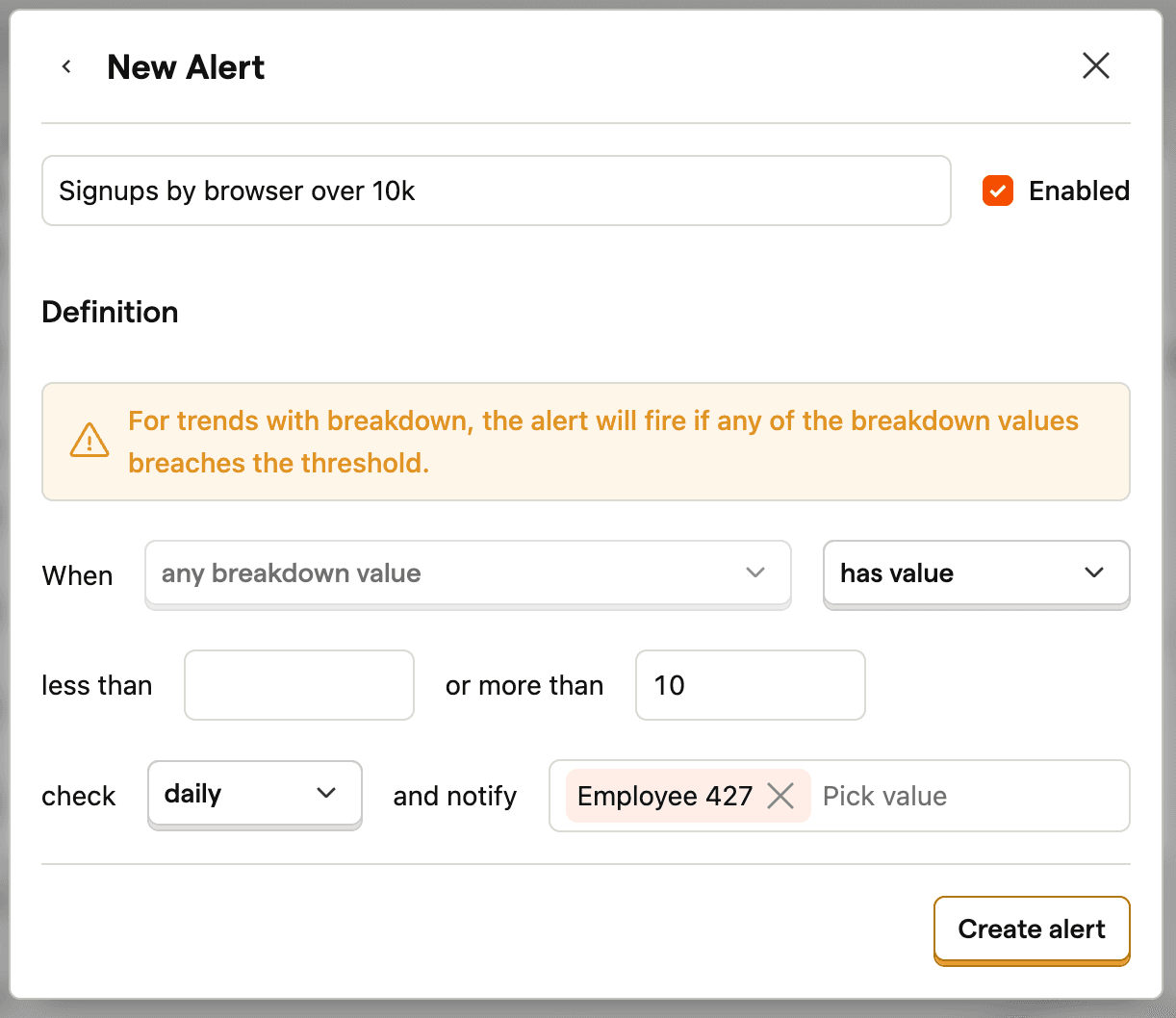
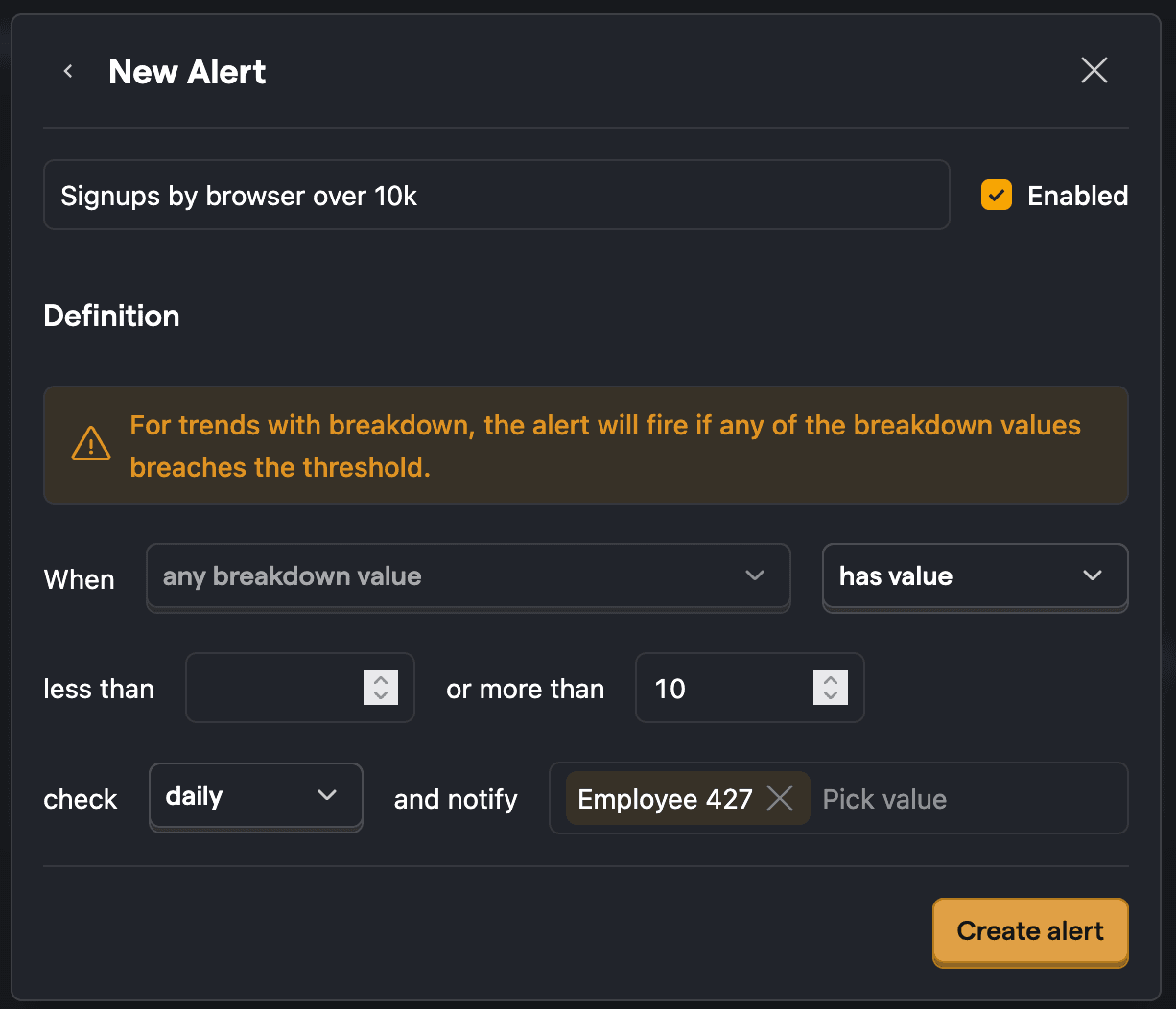
When you set an alert on a trend with a breakdown, the alert will be triggered when any of the breakdown values breaches the thresholds set.
Automatically disabled alerts
PostHog automatically disables alerts that have an invalid configuration. When this happens, subscribed users receive an email notification explaining the reason the alert was disabled.
Common reasons an alert may be auto-disabled:
- The insight was modified and is no longer compatible with the alert configuration (e.g., the insight query type changed from a trend to a funnel)
- The series referenced by the alert was removed from the insight
- A relative alert condition (increases by/decreases by) was set on a non-time-series trend (e.g., a pie chart or number)
- An absolute value alert was configured with a percentage threshold
- The alert has a missing or invalid check frequency (calculation interval)
Disabled alerts don't re-enable themselves. After fixing the configuration issue, go to the Alerts tab on the insight and manually re-enable the alert.
Further reading
For more ideas on how to get started with Alerts, check out our alerts examples.